Sooner or later, someone outside your workspace needs to see where a single task stands. A client asks how the new logo is coming along. A contractor needs the brief. A manager in another department wants to know whether their request has a date yet. Until now, the choice was to invite them into the workspace, which is a lot for one task, or to paste the details into an email that's out of date by the next morning.
Public links give you a third option. Create a link for a task and send it to whoever needs it. They open a clean, read-only view of the task in their browser, with no account to create, no invitation to accept and no seat to pay for. And because the link shows the task itself rather than a copy of it, it's never out of date.
Public links are included in the Pro, Business and Enterprise plans.
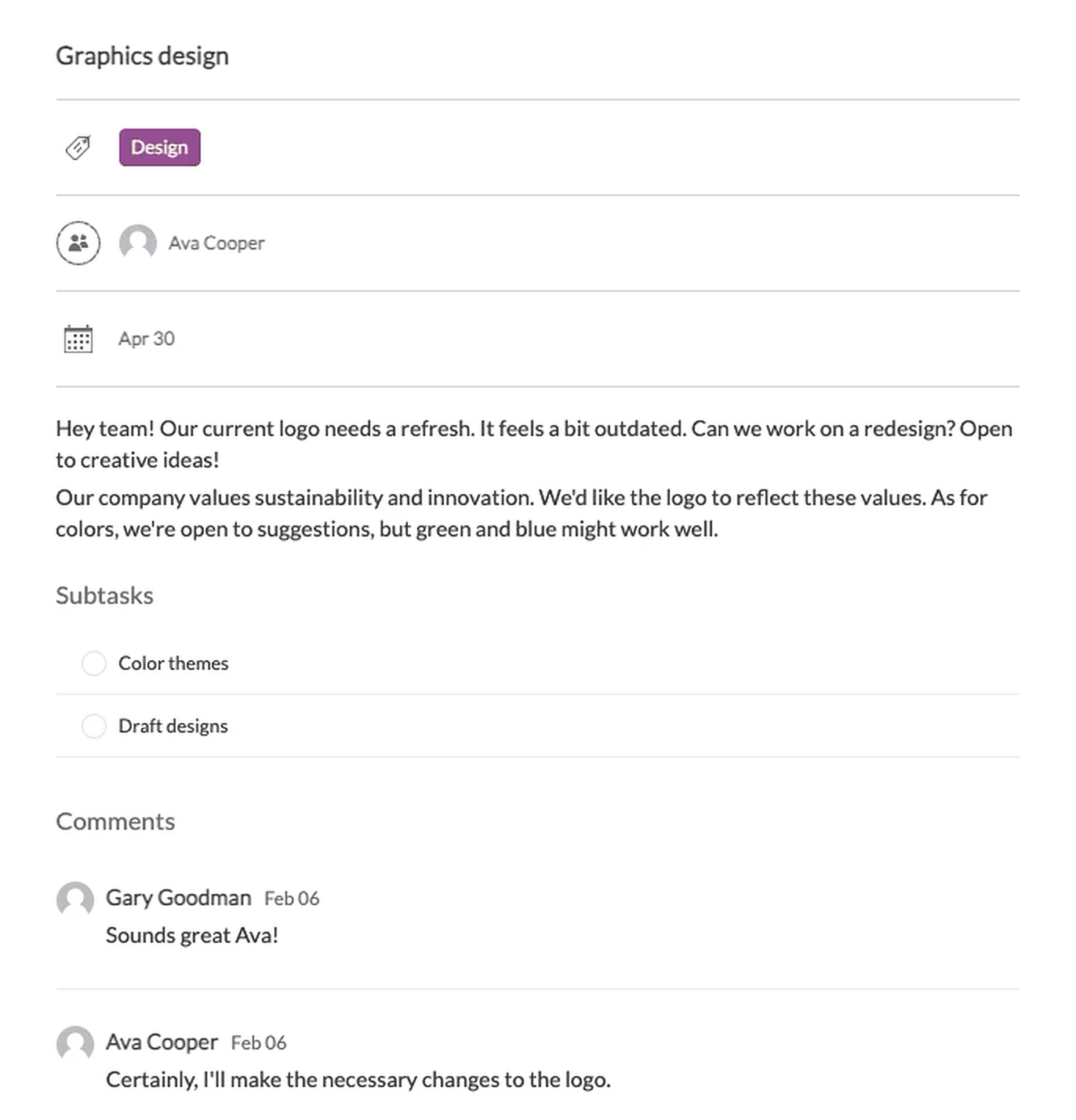
Here's what someone sees when they open one. The screenshots in this post are from Grand Cafe, a fictional demo workspace where a team is redesigning a logo.
Why Teams Use Public Links
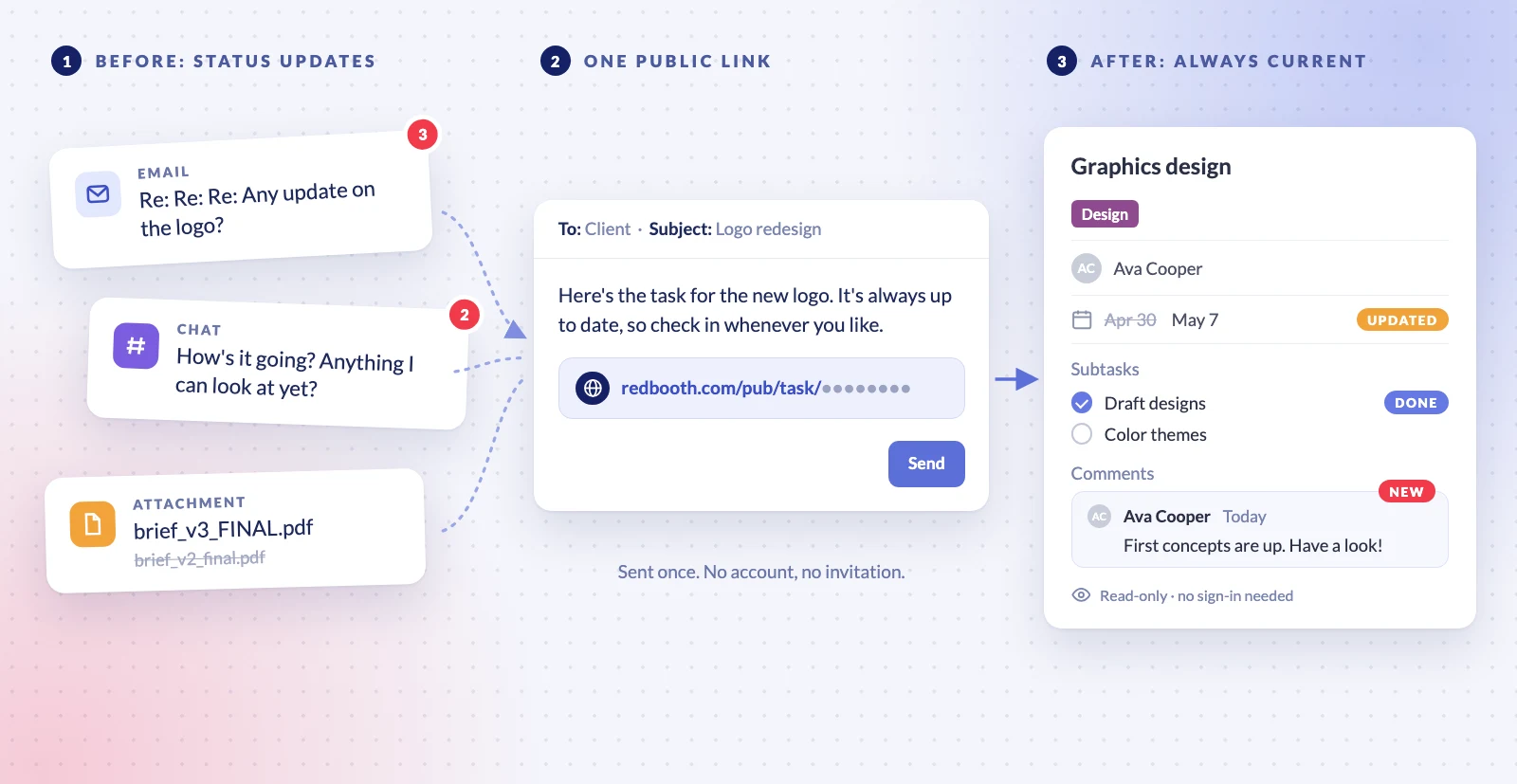
Send it once, and it stays current
A status email is out of date the moment you send it. A public link always shows the task as it is now, so clients and colleagues in other departments check progress whenever they like instead of asking. And if a brief changes, contractors see the changes in-place instead of a new attachment named "brief_v3_FINAL" going around.
Zero learning curve for stakeholders
No new tool, no login, no password reset. The link opens in their browser and shows the description, subtasks, due date, who's working on it and the conversation in the comments section, all on one page.
They see one task, not your whole workspace
The person with the link sees the task you chose and nothing else, so an executive can check on one deliverable without access to the whole project. That page includes the comments, so read the thread before you share a task.
You decide when the sharing ends
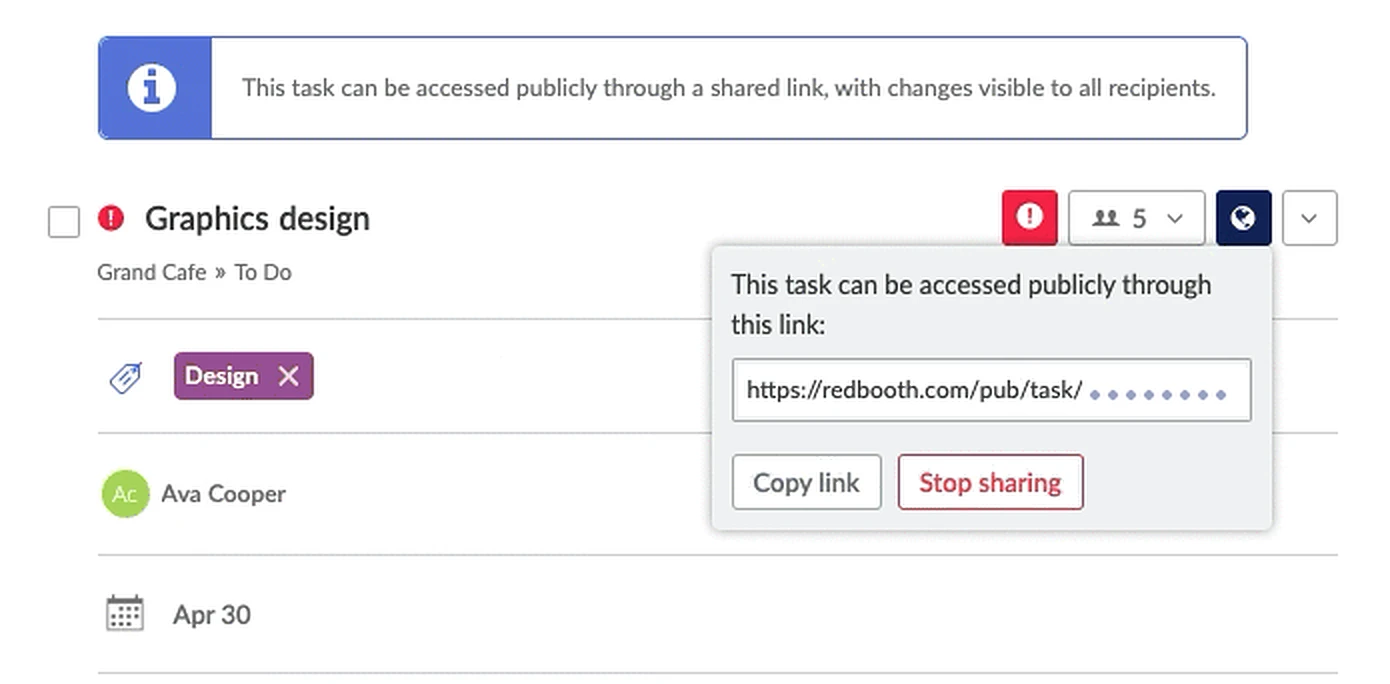
Click Stop sharing and the link stops working. While a task is shared, a banner at the top of it lets your team know.
Sharing Takes Three Clicks
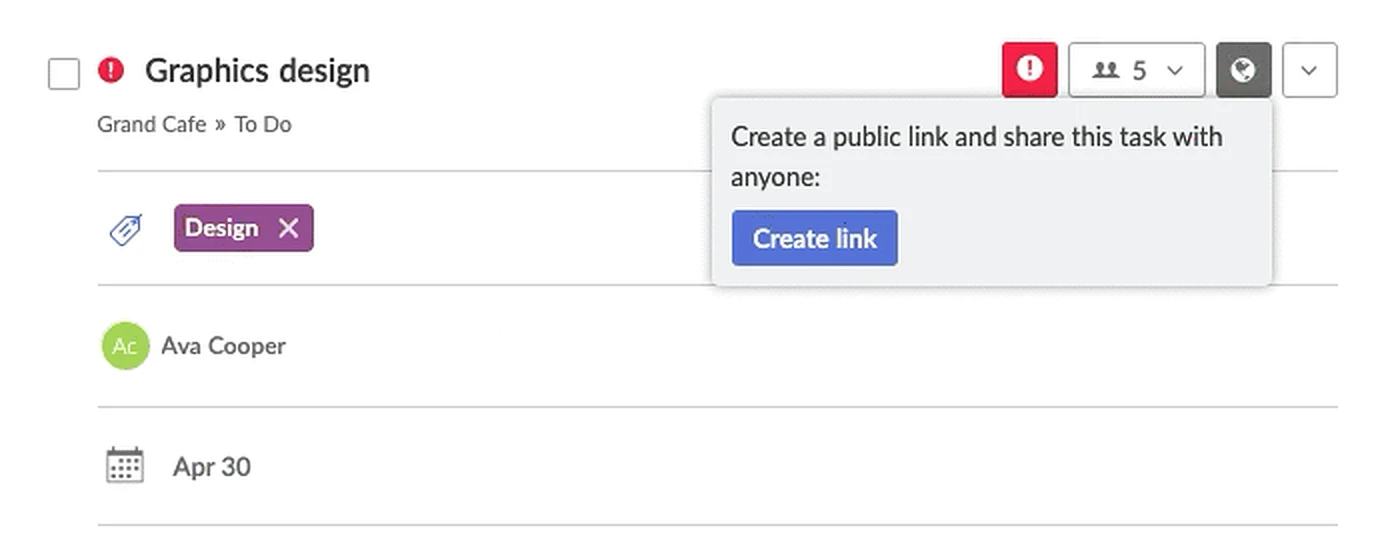
Open the task, click the globe icon near the top right, and click Create link. The globe icon is there for your organization's admins and for whoever created the workspace; other members can ask one of them to share a task.
Then click Copy link and send it by email, Slack, text message or your weekly client update. The banner at the top of the task shows your team that it's being shared. To end sharing, click the globe icon again and choose Stop sharing.
Public Link or External User?
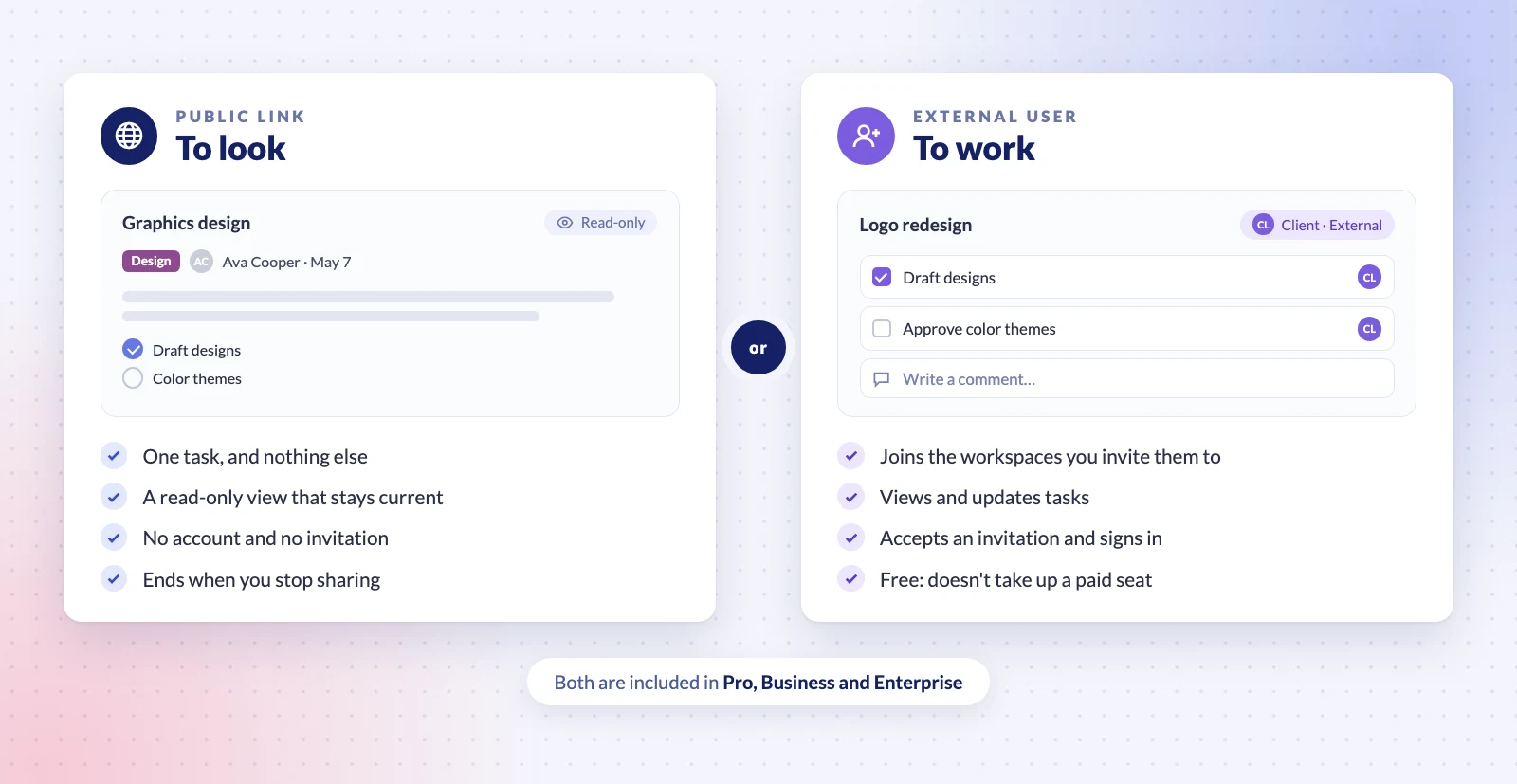
Redbooth also lets you invite clients and contractors as free external users, who don't take up a paid seat. Both are on the same plans, and the rule of thumb is simple. If someone only needs to look, send a public link. If they need to work with you, updating tasks and taking part in the project over time, invite them as an external user.
Close the Loop With Web Forms
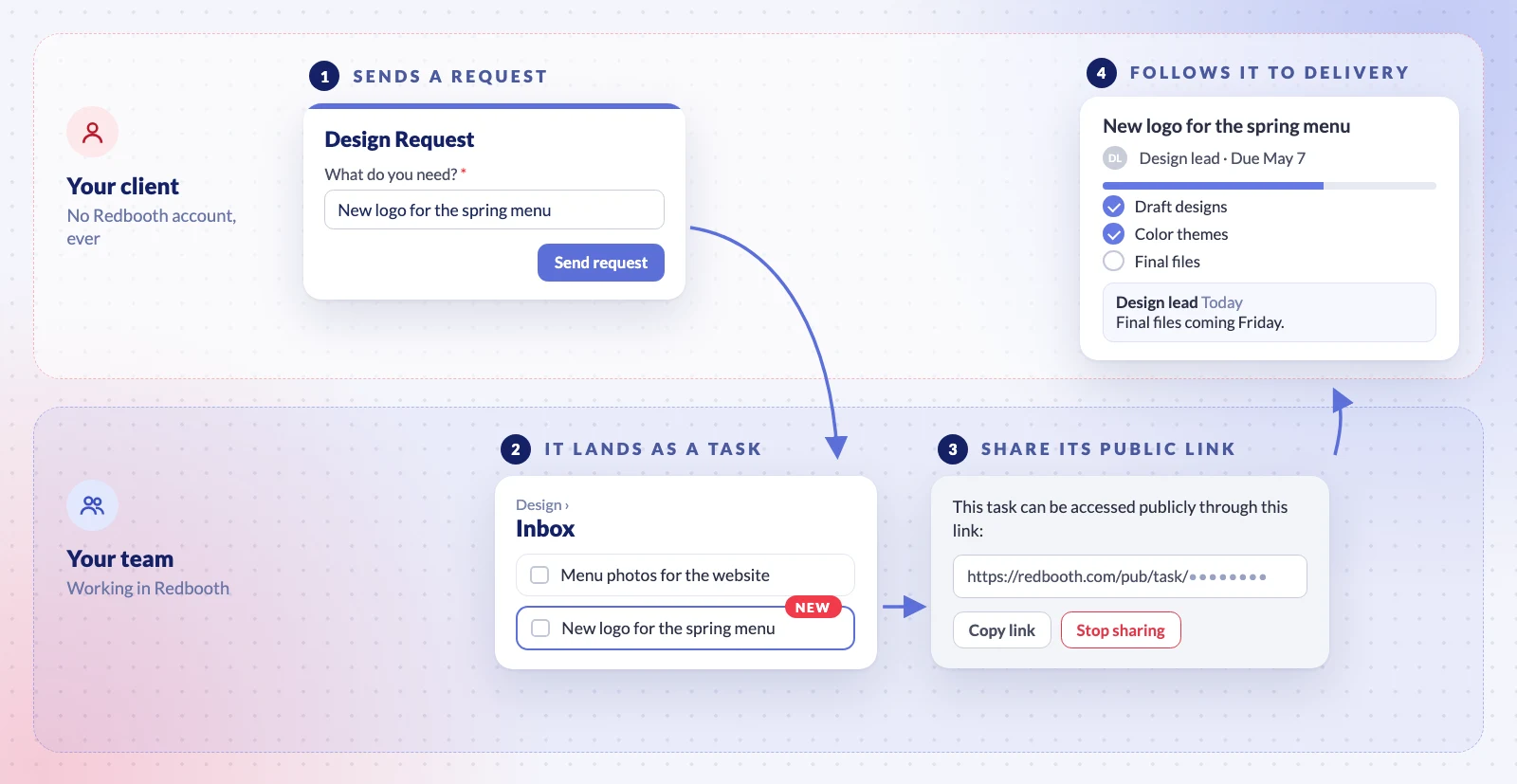
On Business and Enterprise, public links pair naturally with Web Forms. A client submits a request through your form, and it lands in your workspace as a task. Share that task's public link back with them, and they can follow the work from request to delivery. They never need a Redbooth account, and your team never has to write a status update.
Try It on Your Next Status Update
The next time someone asks how a task is going, don't write the update. Open the task, click the globe icon and send the link. Public links are available on the Pro, Business and Enterprise plans, and the step-by-step guide is in our Help Center: Share Tasks with Anyone Using Public Links.