Redbooth's MCP server allows for a connection point built on the Model Context Protocol, the open standard for linking AI assistants to live, real-world data. Because it's an open standard rather than a Claude-only integration, any MCP-compatible assistant can connect – Claude, ChatGPT, Perplexity, Mistral, Copilot Studio, WarpAI, and others.
Once connected, your assistant can see your tasks, task lists, tags, comments, files, and team members – and act on them: create a task, update a status, leave a comment, summarize a workspace. No tab-switching, no exporting a CSV first. You just ask, in plain language, and your assistant does the lookup or the write against live Redbooth data.
Setup takes about a minute regardless of which assistant you use. Here's how, followed by seven ways teams are already putting it to work.
How to Connect Your AI Assistant to Redbooth
Every MCP-compatible assistant needs the same two things: a name for the connector, and this URL.
Remote MCP server URL: https://redbooth.com/api/mcp
Where you paste that URL depends on which assistant you use. The setting is usually called "Connectors," "Custom connector," "MCP server," or "Add integration" – here's where to find it in a few popular ones:
- Claude: Open Claude.ai, go to the connectors panel, click +, and select Add custom connector. Enter the name (Redbooth) and the URL above, then hit Add.
- ChatGPT: Go to Settings → Connectors → Add custom connector. Enter the name and the URL above.
- Perplexity: Add a custom MCP connector from Perplexity's connector settings, using the name and the URL above.
- Mistral (Le Chat): Add an MCP connector in Le Chat's tools/connectors settings, pointing to the URL above.
- Copilot Studio: Add an MCP server entry pointing to the URL above in your agent's tools configuration.
- WarpAI: Add an MCP server entry pointing to the URL above in Warp's MCP configuration.
- Other MCP clients: Look for a "Custom connector," "MCP server," or "Add integration" option in the assistant's settings, and paste in the same URL.
Once added, authorize the assistant to access your Redbooth account when prompted. That's it – you can now ask about your tasks, workspaces, and team directly in conversation, no separate app or context-switching required.
Seven Ways Teams Are Already Using It
The obvious use case is "what's due this week," and any connected assistant handles that well. But the more interesting patterns show up once people realize their assistant can read and write – turning a conversation into task creation, status updates, and comments, not just a lookup.
1. The Weekly Agenda
Try asking: "Show me this week's outlook in terms of tasks I need to work on."
This is the use case that surprises people most: your assistant doesn't just answer in text, it can build a custom visual report on the spot – overdue counts, a day-by-day board, urgent items flagged – assembled from your live task data instead of a fixed dashboard someone else designed.
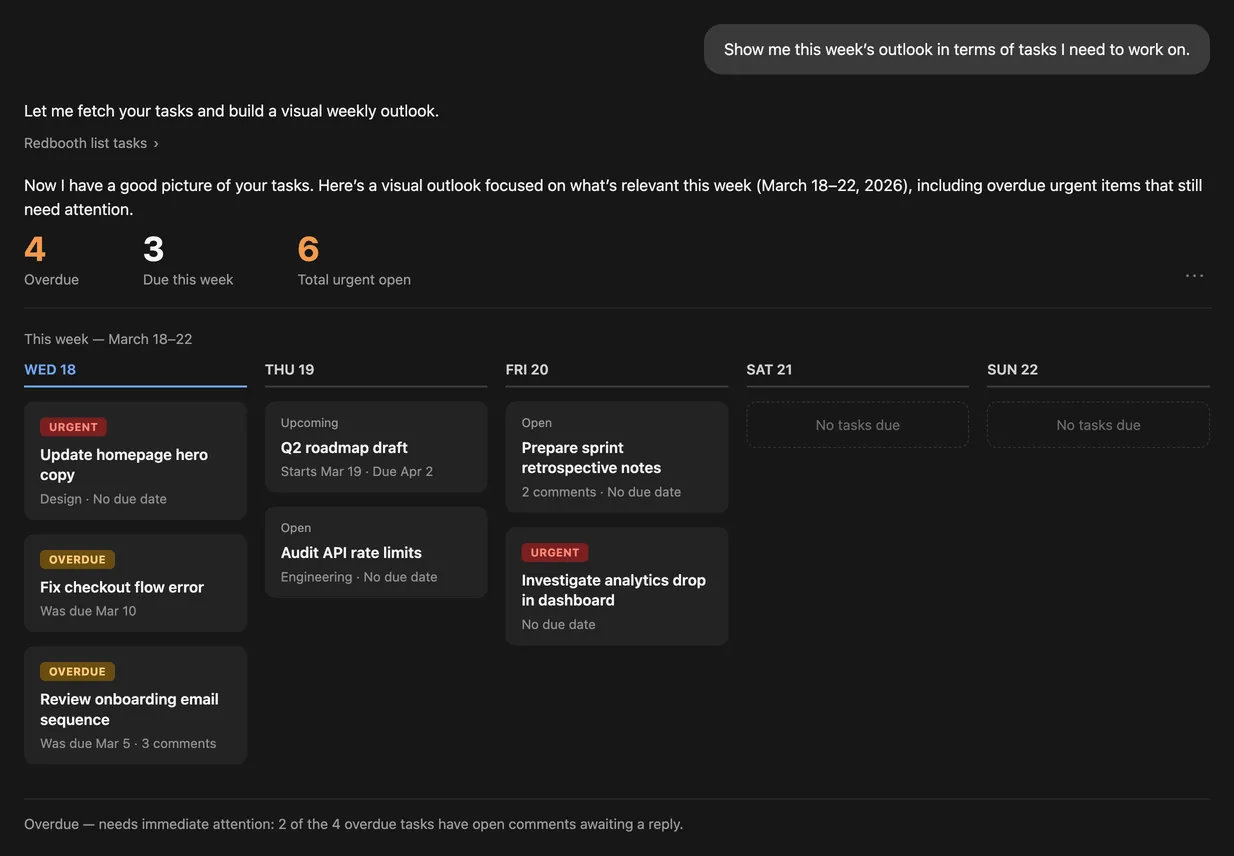
No report template to build, no export to a spreadsheet – the assistant reads the task list once and renders the view that answers the question you actually asked.
2. The Bandwidth Check
Try asking: "Who on the design team has the lightest task load this week?"
Before you assign new work, your assistant can cross-reference workspace members against their current open task counts and due dates. It's a quick gut-check that normally requires opening everyone's individual task list – now it's one question.

Ranking by count, not just listing it, is the part that saves time – you get an answer to "who should I assign this to" instead of a spreadsheet you'd have to sort yourself.
3. The Blocker Sweep
Try asking: "Scan comments in the Q3 Launch workspace for anything that sounds blocked or waiting on someone."
Blockers usually live in a comment thread, not a status field. Your assistant can read across a workspace's task comments and surface the ones with blocker language – "waiting on," "need approval," "stuck on" – so you catch stalled work before it becomes a missed deadline instead of after.
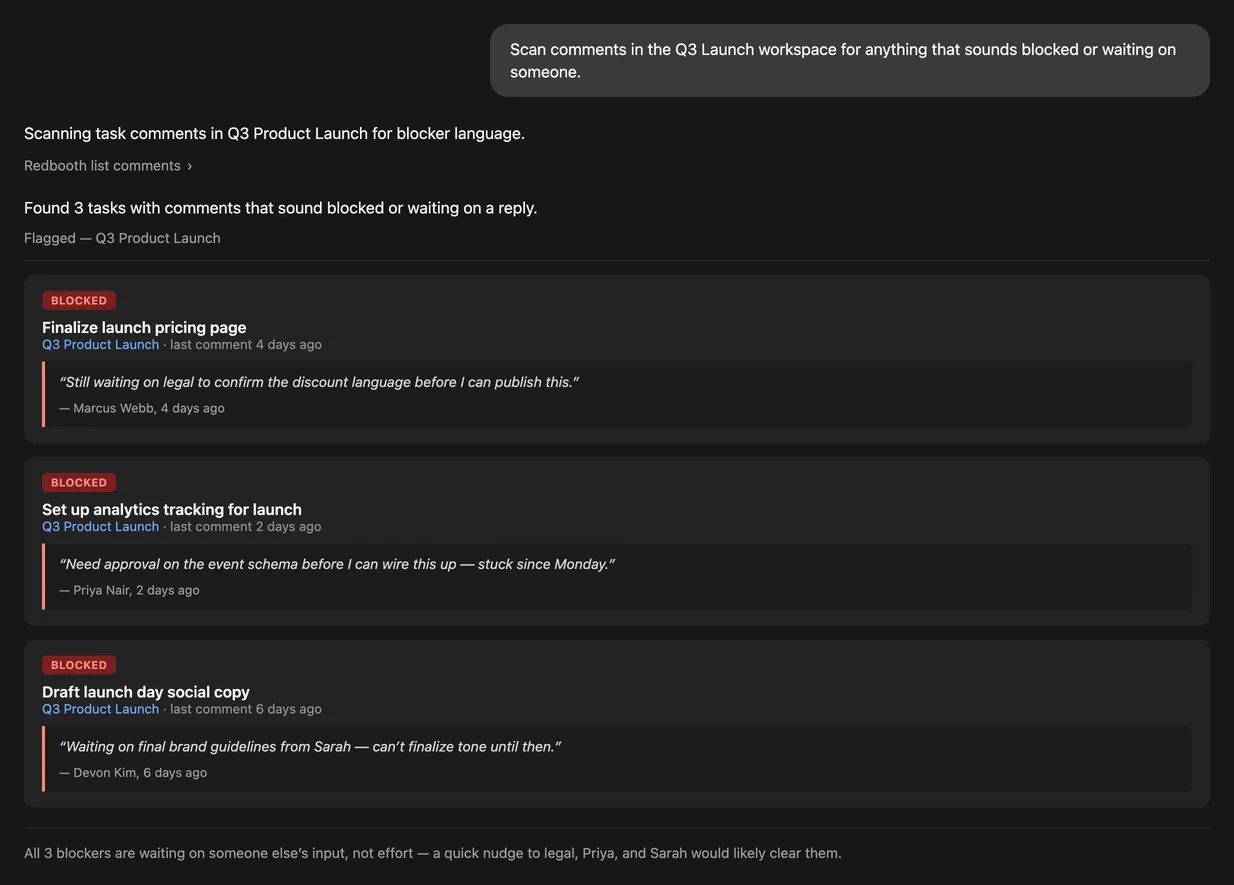
Each flagged task keeps the original comment attached, so you're not taking the assistant's word for it – you can see exactly who said what before you go chase the blocker down.
4. Client-Ready Status Updates
Try asking: "Turn the current state of the Acme Corp workspace into a two-paragraph update I can send the client."
Your assistant reads what's actually done, in progress, and upcoming, then drafts client-facing prose instead of a raw task dump. You still hit send – but the fifteen minutes of writing "how do I phrase this politely" disappears. Agencies already using client-facing workspaces to replace the weekly status email tend to get the most out of this one – the assistant is just automating a summary of a workspace that was already structured to be client-readable.
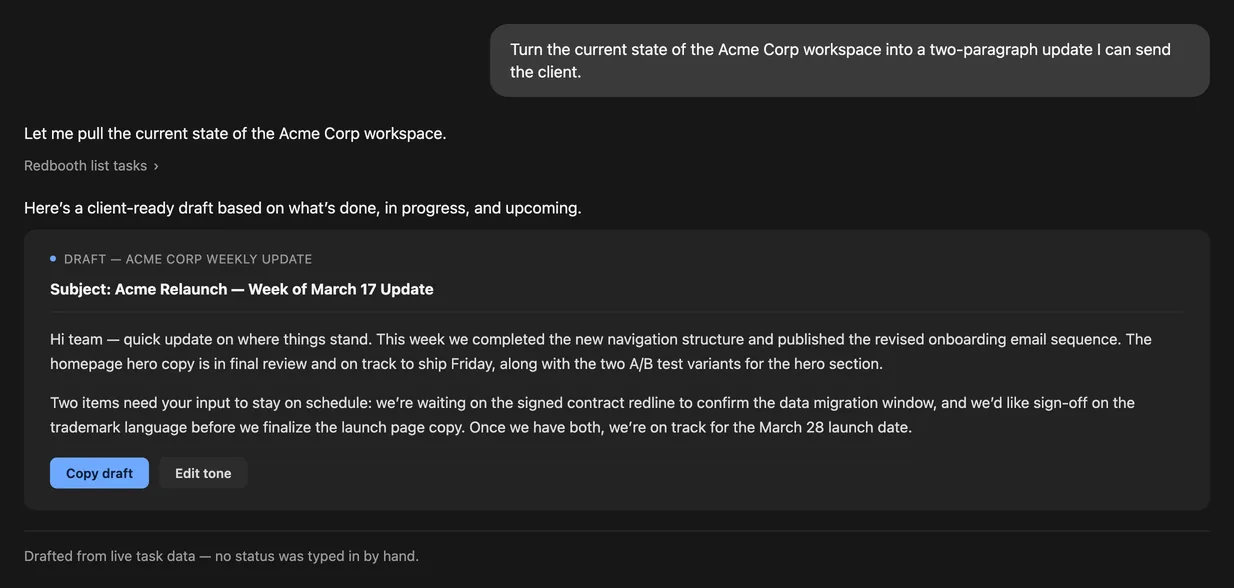
Nothing in the draft was typed in by hand – every fact in it, including the two open items that need client input, traces back to a live task. That's what makes it safe to send with only a light edit pass.
5. Meeting Notes to Tasks
Try asking: "Here are my notes from the kickoff call – create tasks for each action item under the right owner."
Paste in raw meeting notes or a pasted email thread, and your assistant parses out the commitments and creates tasks (with subtasks, where the notes call for a checklist) instead of leaving them stranded in a doc nobody reopens. If you also use Redbooth AI's Subtask Suggestion inside the task itself, the checklist your assistant starts gets refined further without leaving the task.
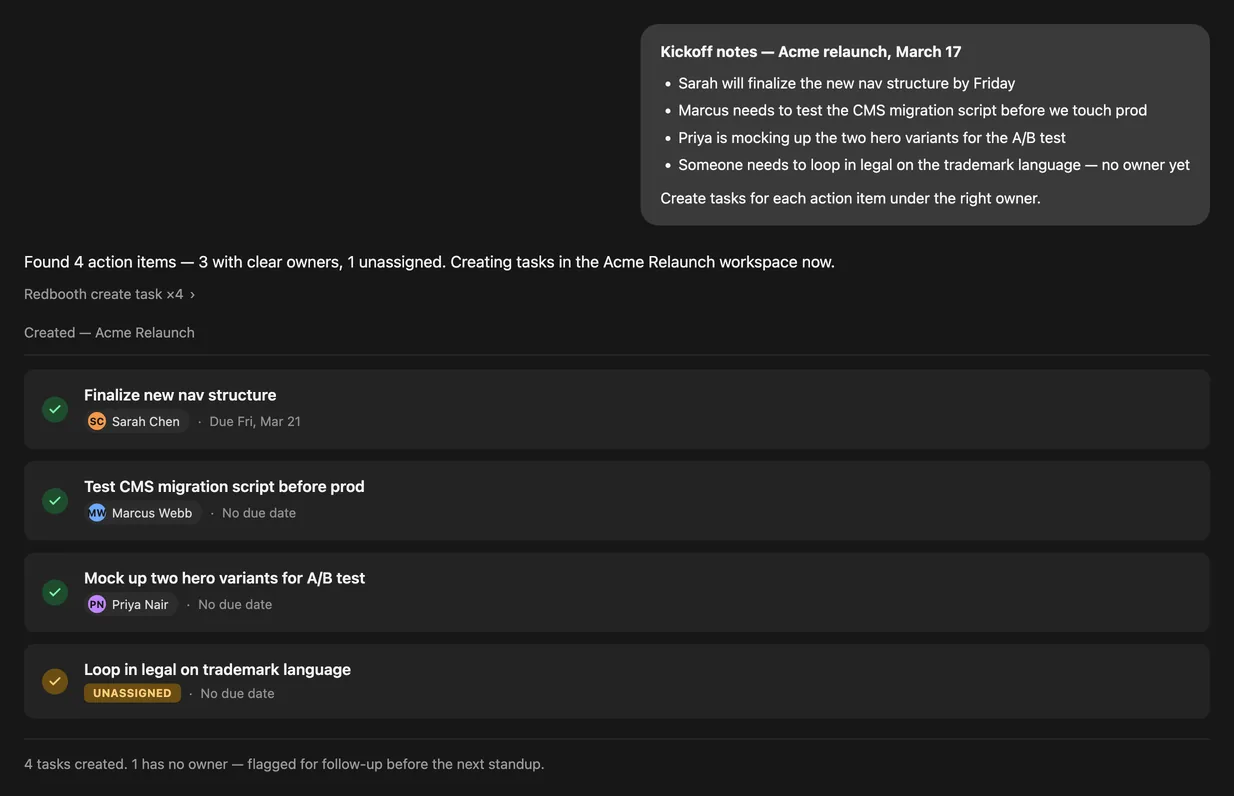
Notice the last task: the assistant didn't guess an owner when the notes didn't name one – it created the task and flagged it unassigned instead, so nothing silently falls through with the wrong name attached.
6. The Weekly Rollup
Try asking: "Give me a weekly outlook: what got completed, what's at risk, and what's new across all my workspaces."
This is the report that usually eats a chunk of Friday afternoon. Your assistant assembles it from live workspace activity in seconds – a genuinely different picture of the week than any single workspace view can show, because it spans all of them at once.
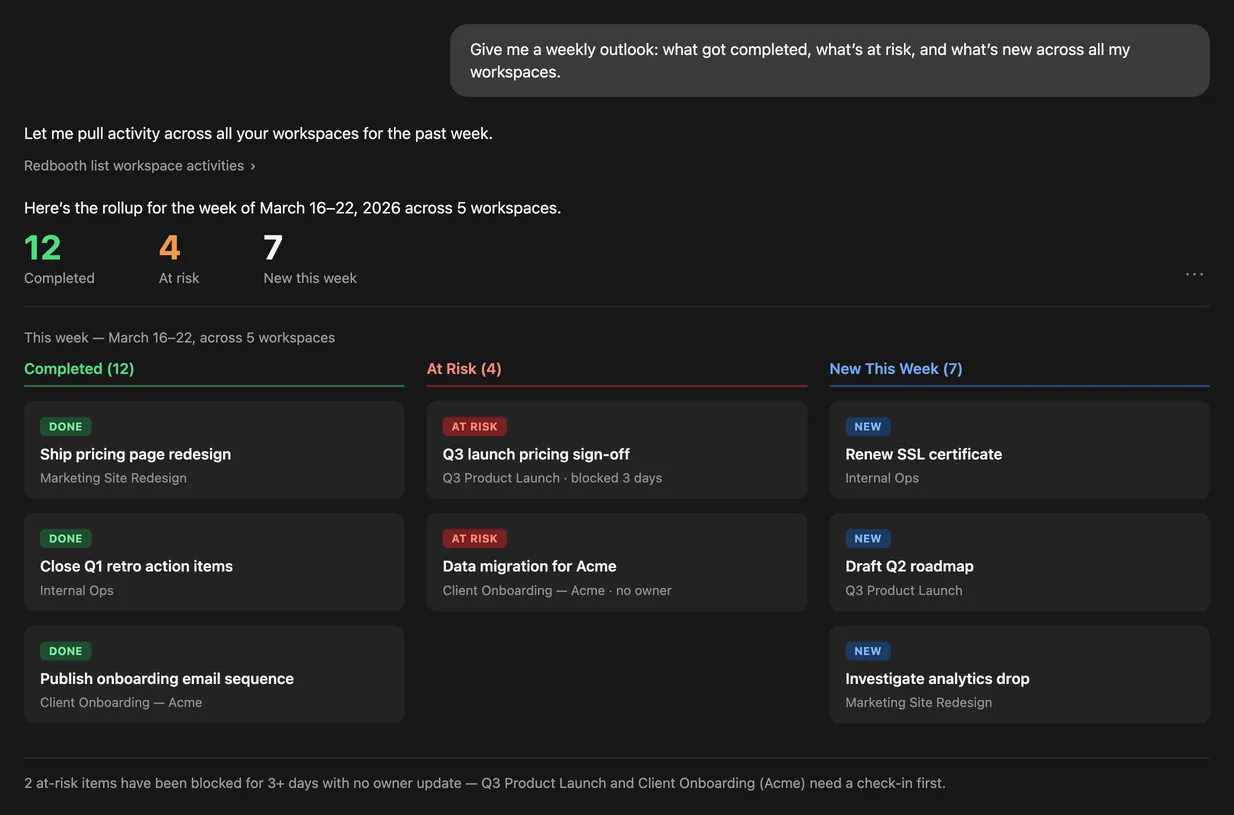
The at-risk column is the one that usually gets buried in a status email – here it's flagged automatically, with the blocker reason attached, instead of waiting for someone to notice and ask.
7. Tag-Based Triage
Try asking: "Show me every task tagged 'urgent' that's still open, across the whole organization."
Tags are one of the most flexible fields in Redbooth, but they're workspace-scoped in the UI – you can't easily filter by tag across every project at once. Your assistant can, which makes tags useful as an org-wide triage signal instead of just a per-workspace label.
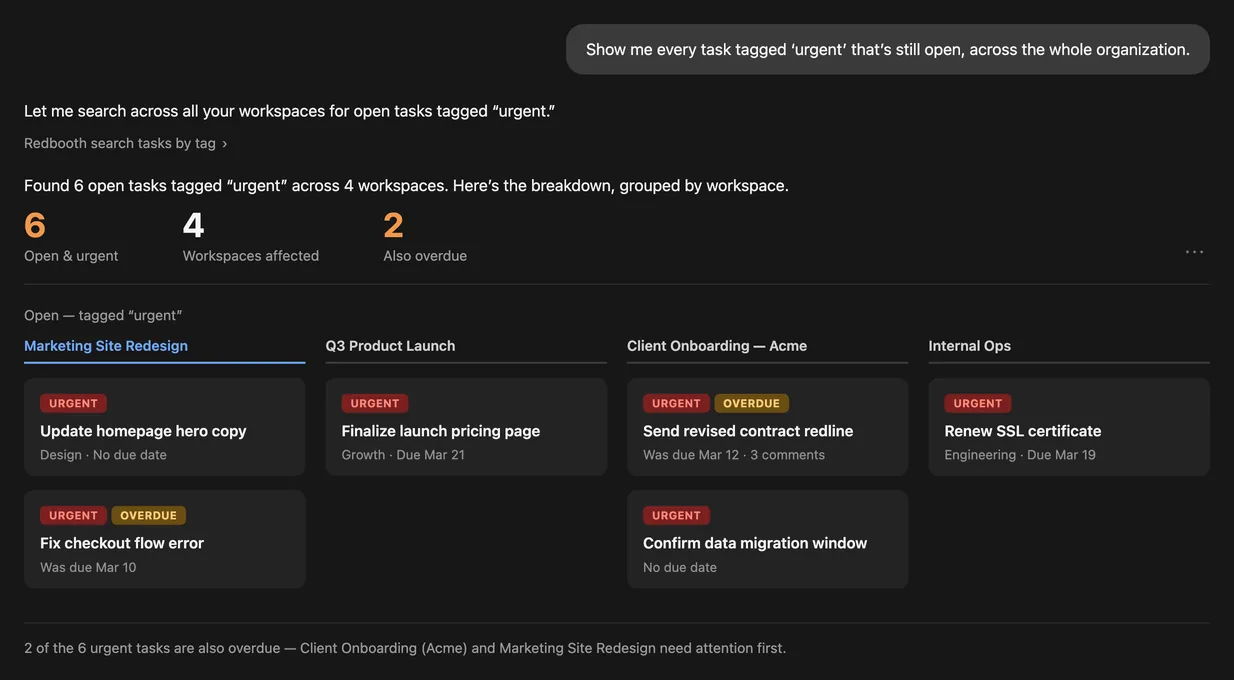
The org-wide grouping is the part that's hard to get from the UI alone – tags live at the workspace level, so seeing them rolled up across every project usually means opening each one individually.
Give It a Try
The MCP server is included in the Pro, Business and Enterprise plans, and needs no admin configuration beyond authorizing the connection. If you want a walkthrough, our Help Center has step-by-step guides.
If you land on a use case that isn't listed here, we'd genuinely like to hear about it – that kind of feedback shapes what we build into the MCP server next.