In 2021, a remote team needed a chat app, a video call and somewhere to keep its tasks. It still does. What has changed is everything around them: meeting tools now write their own notes, a two-minute video can replace a half-hour meeting, and an assistant can summarize a thread you missed overnight. Most teams have also learned that the hard part was never the tools, but agreeing what each one is for.
This guide lists what a remote team needs, job by job, with the tools teams actually use for each. Then it covers the decision that makes them work: where each kind of message goes. It ends with the habits that keep a remote team in sync, and how to run one in Redbooth.
What Changed Since 2021
- Meetings take their own notes. Zoom, Google Meet and Microsoft Teams all have built-in AI that transcribes a call and summarizes it, and standalone note-takers such as Otter and Fathom do the same. Nobody has to choose between listening and writing anymore.
- Short videos replace meetings. Tools like Loom, or clips in Slack, let someone record their screen and voice to walk through a design or a bug. Others watch it when their day starts, at double speed if they like.
- Summaries close the time-zone gap. Chat and project tools can now summarize a long thread or a busy task, so the person who starts their day eight hours after everyone else catches up in a minute.
- Hybrid became normal. Many teams are partly in an office and partly not, so the tools have to work as well for the person dialing in as for the people in the room.
The Remote Work Toolkit, Job by Job
A remote team needs a tool for each of these jobs. It rarely needs more than one per job, and some tools cover several.
| Job | What to look for | Tools teams use |
|---|---|---|
| Chat | Channels per team or project, threads, quick calls | Slack, Microsoft Teams, Google Chat |
| Video meetings | Reliable calls, screen sharing, recording | Zoom, Google Meet, Microsoft Teams |
| Meeting notes | A transcript, a summary and the action items, shared after the call | The AI built into your meeting tool, or Otter or Fathom |
| Async video | Screen and voice recording, comments on the video | Loom, Slack clips |
| Docs and knowledge | One place for decisions, how-tos and onboarding, easy to search | Notion, Confluence, Google Docs |
| Tasks and projects | Who does what by when, visible to everyone, with the discussion on the task | Redbooth, Asana, Trello, monday.com |
| Whiteboards | Workshops, brainstorming and diagrams with several people at once | Miro, FigJam |
| Files | Shared folders, version history, access control | Google Drive, OneDrive, Dropbox |
| Scheduling | Meeting times that work across time zones | Your calendar's time zone view, Calendly, World Time Buddy |
| Security | Shared passwords, two-factor sign-in, safe access on public Wi-Fi | 1Password, Bitwarden, your company's VPN |
If your company already pays for Microsoft 365 or Google Workspace, start there: chat, meetings, docs and files are covered, and you add only what's missing, usually a task tool and a whiteboard.
Decide Where Each Kind of Message Goes
Teams with good tools still get lost when the same decision lives in a chat thread, an email and a meeting. The fix is a short agreement about where each kind of message goes, written down where everyone can find it:
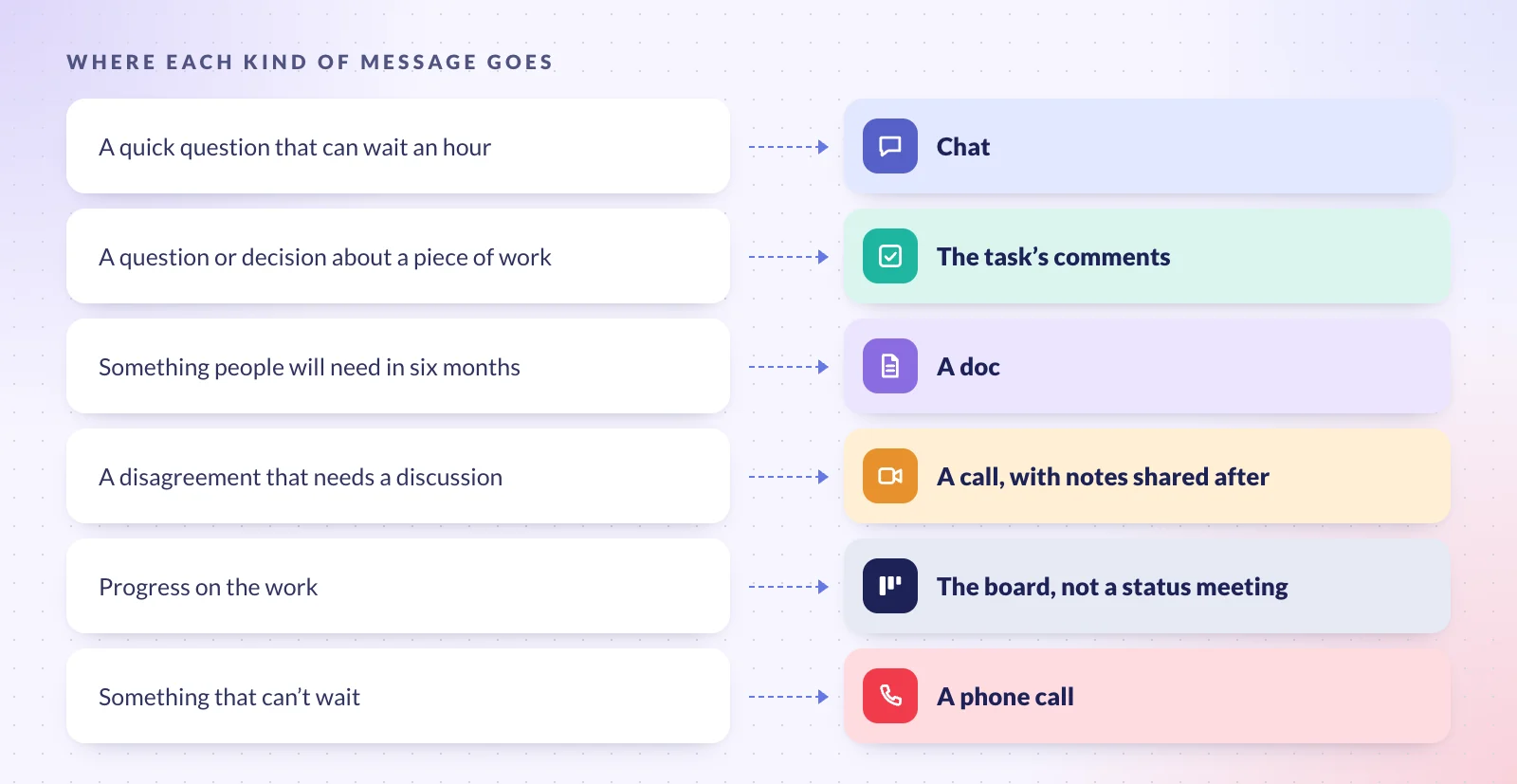
| Message | Where it goes | Why |
|---|---|---|
| A quick question that can wait an hour | Chat | Fast, but nobody has to stop what they're doing |
| A question or decision about a piece of work | The task's comments | Whoever picks the task up later finds the context next to the work |
| Something people will need in six months | A doc | Chat scrolls away; a doc can be found and updated |
| A disagreement | A call, with notes shared after | Ten minutes of talking beats a day of messages |
| Progress | The board | Anyone can check it any time, without a status meeting |
| Something that can't wait | A phone call | Urgent messages shouldn't depend on someone checking chat |
The right place for this agreement is the team's charter, together with core hours and how fast people should reply. Our guide to the team charter has a template.
Habits That Make Remote Work Easy
- Agree on overlap hours. Two or three hours a day when everyone is online is enough for calls and quick questions. Keep the rest for focused work.
- Default to writing. A decision that isn't written down didn't happen for the person who wasn't there. Post the outcome of every call where the work lives.
- Make progress visible. If the board is up to date, nobody needs to ask "where are we?", and status meetings can go.
- Set reply times. Say how quickly chat, comments and email get an answer, so nobody feels they have to be online all day.
- Give meetings an agenda and notes. No agenda, no meeting. Share the notes and recording, so attending is optional for anyone who only needs the result.
- Put the time zone in every deadline. "Friday" means different hours in Lisbon and Mexico City; "Friday 17:00 UTC" doesn't.
- Onboard with a buddy. New people can't overhear how things work. Pair them with someone for their first weeks.
Run a Remote Team in Redbooth
Redbooth covers the tasks-and-projects job, and keeps the discussion next to the work, so a remote team needs fewer other tools:
- Tasks with the conversation on them. Each task has its assignee, dates, subtasks, files and comments, so decisions stay with the work. Each workspace also has its own conversations for topics that span several tasks. Both are on every plan.
- Progress anyone can check. The board view shows where each task is, and the Timeline view shows the plan over time, on every plan.
- Chat and video in the same place. Workspace chat, and HD video meetings started from a task or a workspace, powered by Zoom, are on the Pro plan and above.
- Who's overloaded. Workload shows how much each person has on, and time tracking logs hours against tasks, on Pro and above.
- Catching up across time zones. Redbooth AI's task summary reads a task's description and comments and sums them up, on the Business plan and above.
See how remote teams use Redbooth, or start a free account and set up your team's first workspace.
Questions People Ask
What tools do you need to work remotely?
At minimum: chat, video meetings, a place for documents and files, and a task or project tool. Most teams then add AI meeting notes, async video, a whiteboard and a password manager.
What's the best tool for remote team collaboration?
There isn't one tool for everything. Pick one per job, and agree where each kind of message goes; that matters more than which brand you choose.
How do remote teams work across time zones?
They agree on a few hours of overlap, write things down so the next person can carry on, put the time zone in every deadline, and use summaries to catch up on what happened while they were asleep.
How do you keep a remote team productive?
Make the work visible on a shared board, cut status meetings, protect time for focused work, and agree on how quickly people need to reply, so nobody has to watch chat all day.
Start with the cheapest fix: spend thirty minutes with your team agreeing where each kind of message goes, and write it down.