Redbooth Web Forms turn outside requests into tasks: someone fills out a form, and a task appears in the workspace and task list you chose. Setting one up takes a couple of minutes. Setting one up well – so every request arrives with what your team needs to act on it – takes a little more thought.
Below are five setups teams can copy as-is or adapt: the form title, description, labels, where submissions land, and what to do once they arrive.
Web Forms, and the Swimlanes view and Redbooth AI features mentioned below, are included in the Business and Enterprise plans.
First, How to Read These Setups
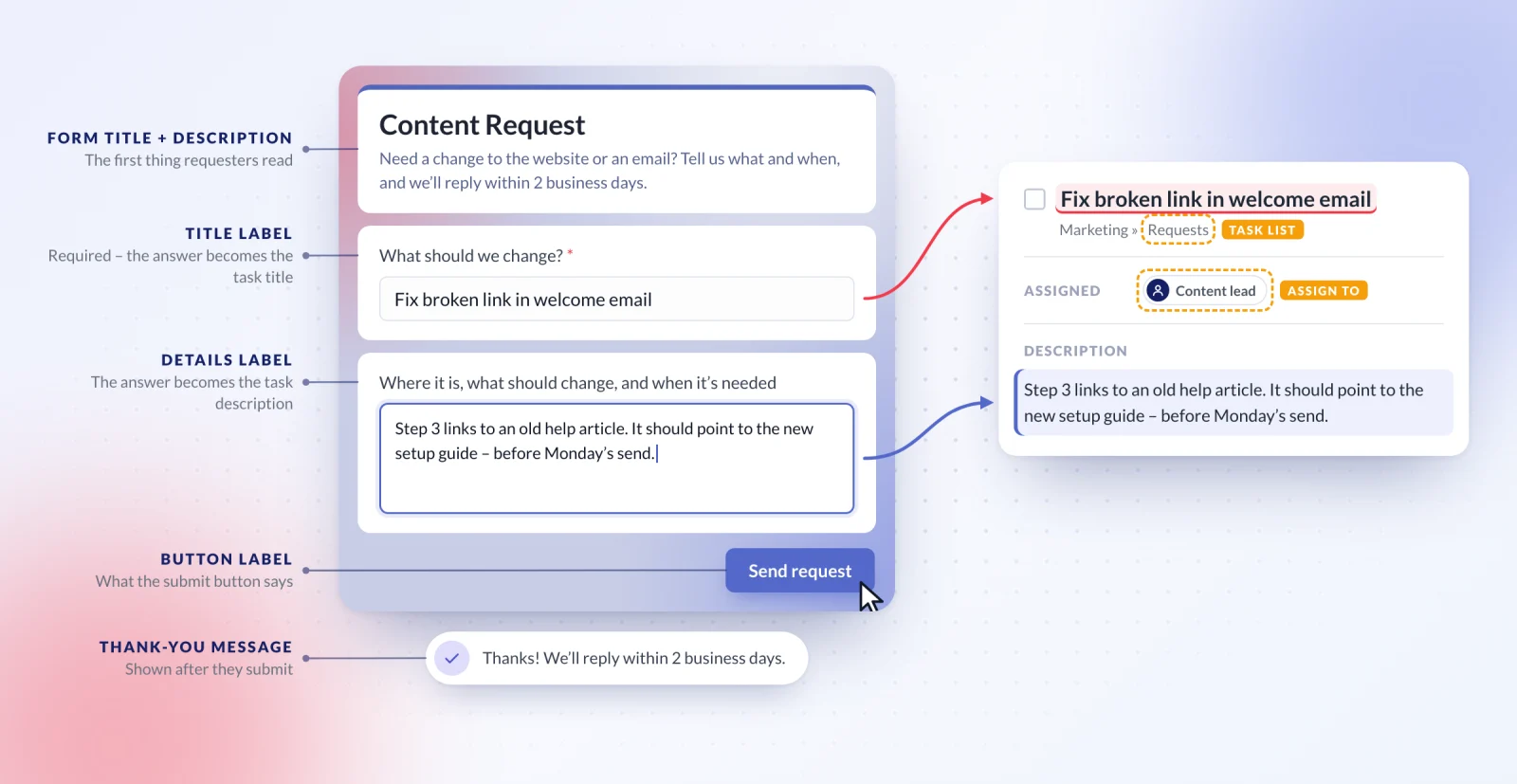
A Web Form has two fields: a required short-answer field that becomes the task title, and a larger text area that becomes the task description. You control what each one is called.
That makes the labels do more work than they would on a longer form. Instead of adding a field for every piece of information, you ask for it in the Details label and the Form description – e.g., "Audience, format, deadline, and links to references." Requesters answer in one place, and the whole brief lands in the task description together.
Each setup below lists:
- Form title and description – what requesters see at the top of the form.
- Title label and Details label – what the two fields ask for.
- Thank-you message – what requesters see after they submit.
- Task list and assignee – where the new task goes and who owns it.
1. The Creative Request Queue
Who it's for: in-house design, content, and video teams that take requests from the rest of the company.
The problem: Sales asks for a one-pager in Slack. HR emails about a hiring graphic. Product mentions launch assets at the end of a meeting. Each request lives in a different place, half of them are missing a deadline, and the design lead spends the first hour of every day reconstructing what's actually been asked.
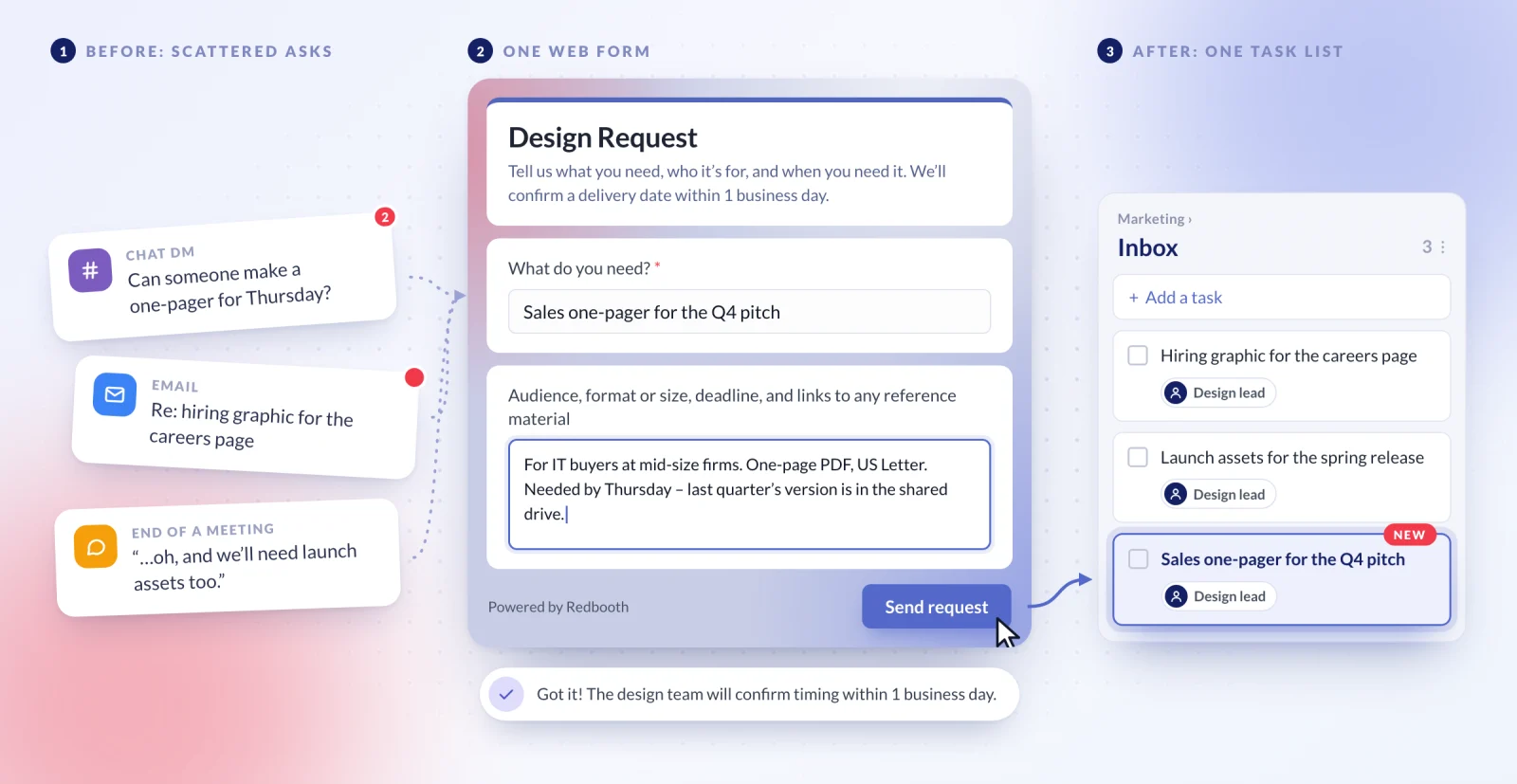
| Form title | Design Request |
|---|---|
| Description | Tell us what you need, who it's for, and when you need it. We'll confirm a delivery date within 1 business day. |
| Title label | What do you need? |
| Details label | Audience, format or size, deadline, and links to any reference material |
| Button label | Send request |
| Thank-you message | Got it! The design team will confirm timing within 1 business day. |
| Task list | Inbox |
| Assign to | Design lead |
Once requests arrive: the design lead reviews the Inbox list once a day, sets a due date, reassigns each task to a designer, and moves it into the production list. Keeping new requests in their own list means nothing unreviewed gets mixed in with work that's already scheduled. To see who's carrying what before you assign, a Swimlanes view grouped by assignee shows the whole team's load at a glance.
Why it works: the promise in the description ("we'll confirm a delivery date within 1 business day") sets expectations up front, so requesters stop following up to ask whether their request was seen.
2. Client Intake for Agencies
Who it's for: agencies and consultancies managing several clients, each in their own workspace.
The problem: new work arrives as "one more quick thing" in an email reply. It never gets scoped, it never gets billed, and by the end of the month the team has delivered far more than the retainer covers.
The setup: create one form in each client's workspace, so every request lands with the right account from the start.
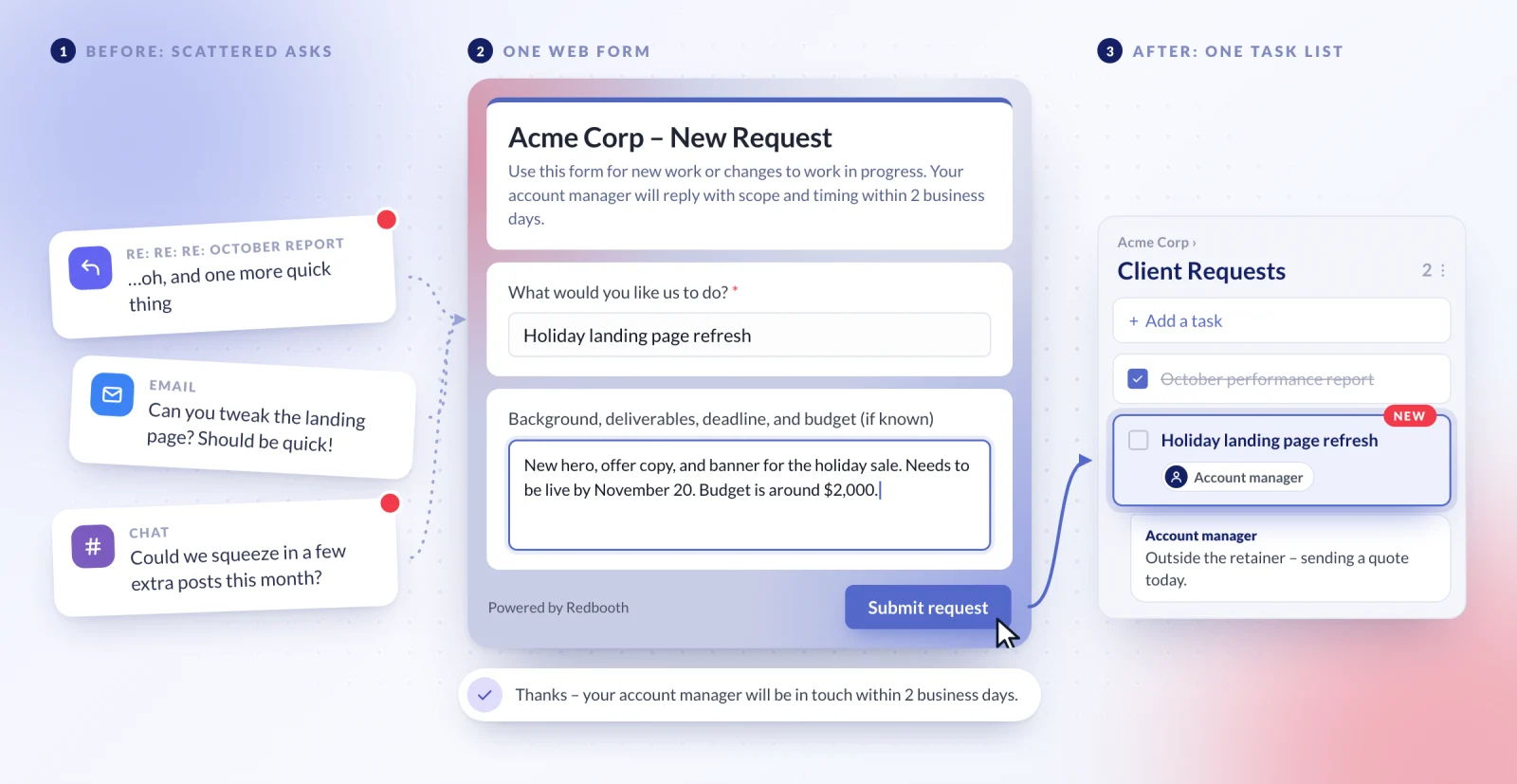
| Form title | Acme Corp – New Request |
|---|---|
| Description | Use this form for new work or changes to work in progress. Your account manager will reply with scope and timing within 2 business days. |
| Title label | What would you like us to do? |
| Details label | Background, deliverables, deadline, and budget (if known) |
| Button label | Submit request |
| Thank-you message | Thanks – your account manager will be in touch within 2 business days. |
| Task list | Client Requests |
| Assign to | The client's account manager |
Once requests arrive: the account manager scopes each request before it moves into production – confirming it's in the retainer, or quoting it separately if it isn't. The conversation happens in the task's comments, so the decision is recorded next to the request itself.
Why it works: the form turns every ask into something the team can see and scope, instead of work that quietly slips in. Share the link in your client kickoff email and in your email signature so it becomes the default way to ask. For more on running an agency in Redbooth, see Redbooth for marketing agencies.
3. An IT or Operations Help Desk
Who it's for: small IT, operations, and facilities teams that don't want to buy and maintain a separate ticketing system.
The problem: requests arrive by DM, by email, and in person at the desk. Nobody knows what's open, and the same laptop issue gets reported three times because nobody can see it was already reported.
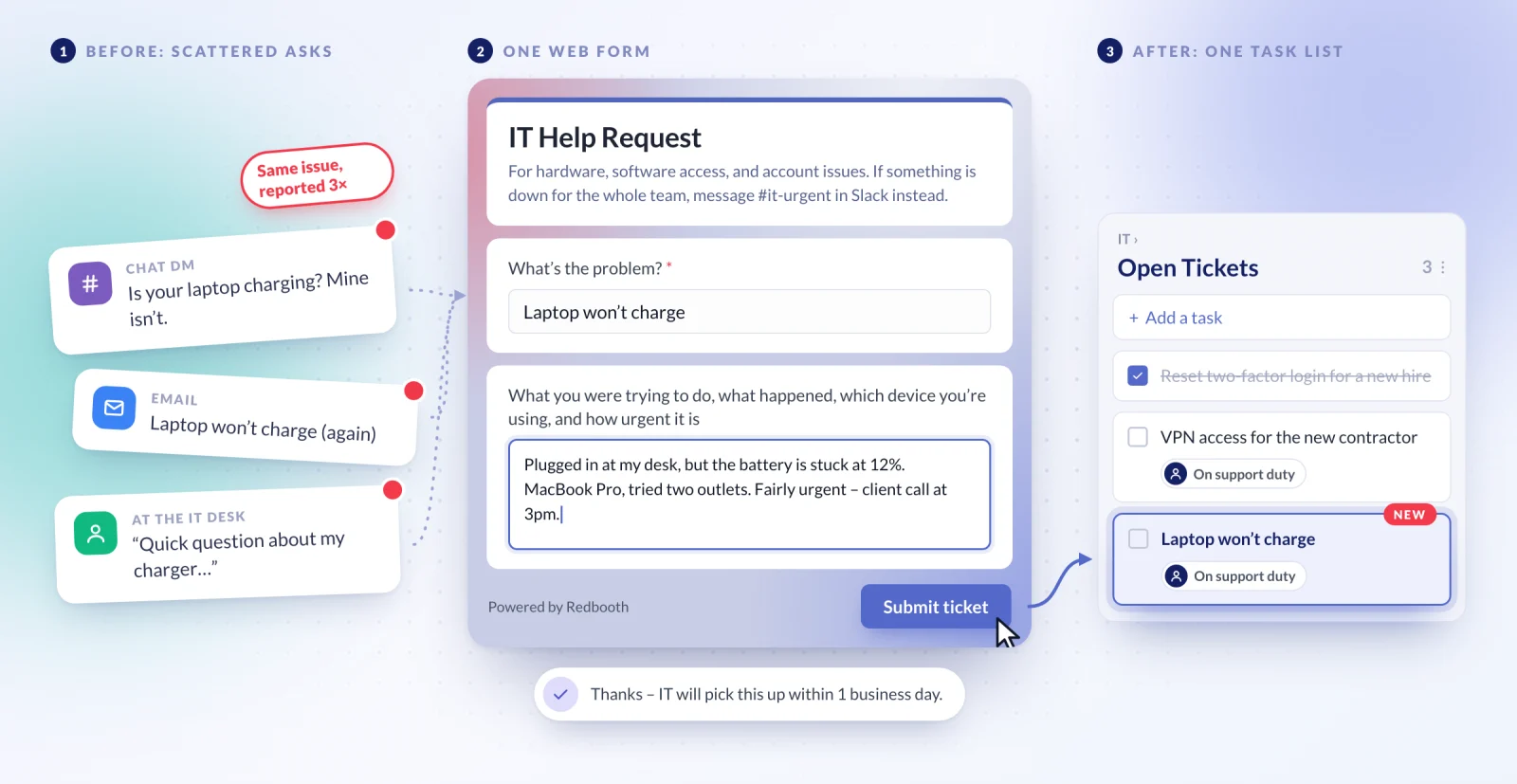
| Form title | IT Help Request |
|---|---|
| Description | For hardware, software access, and account issues. If something is down for the whole team, message #it-urgent in Slack instead. |
| Title label | What's the problem? |
| Details label | What you were trying to do, what happened, which device you're using, and how urgent it is |
| Button label | Submit ticket |
| Thank-you message | Thanks – IT will pick this up within 1 business day. |
| Task list | Open Tickets |
| Assign to | The person on support duty this week |
Once requests arrive: the person on support duty works through Open Tickets, asks follow-up questions in task comments, and marks each task complete when it's resolved. If your team rotates support duty, update the form's Assign to field when the rotation changes – new tickets go to the new owner from then on.
Why it works: requesters don't need Redbooth accounts, so everyone in the company can use the form – not just the people who already have seats. And because every ticket is a task, you get a searchable history of past issues without setting up a separate tool.
4. Customer Feedback and Bug Reports
Who it's for: product and support teams that want feedback from customers in one place.
The problem: feedback is scattered across support tickets, sales call notes, and social media replies. The product team only hears about the loudest issues, and hears about each one second-hand.
The setup: embed the form on your help center or in-app support page using the iframe embed code, and paste the link into support replies when a customer reports something worth tracking.
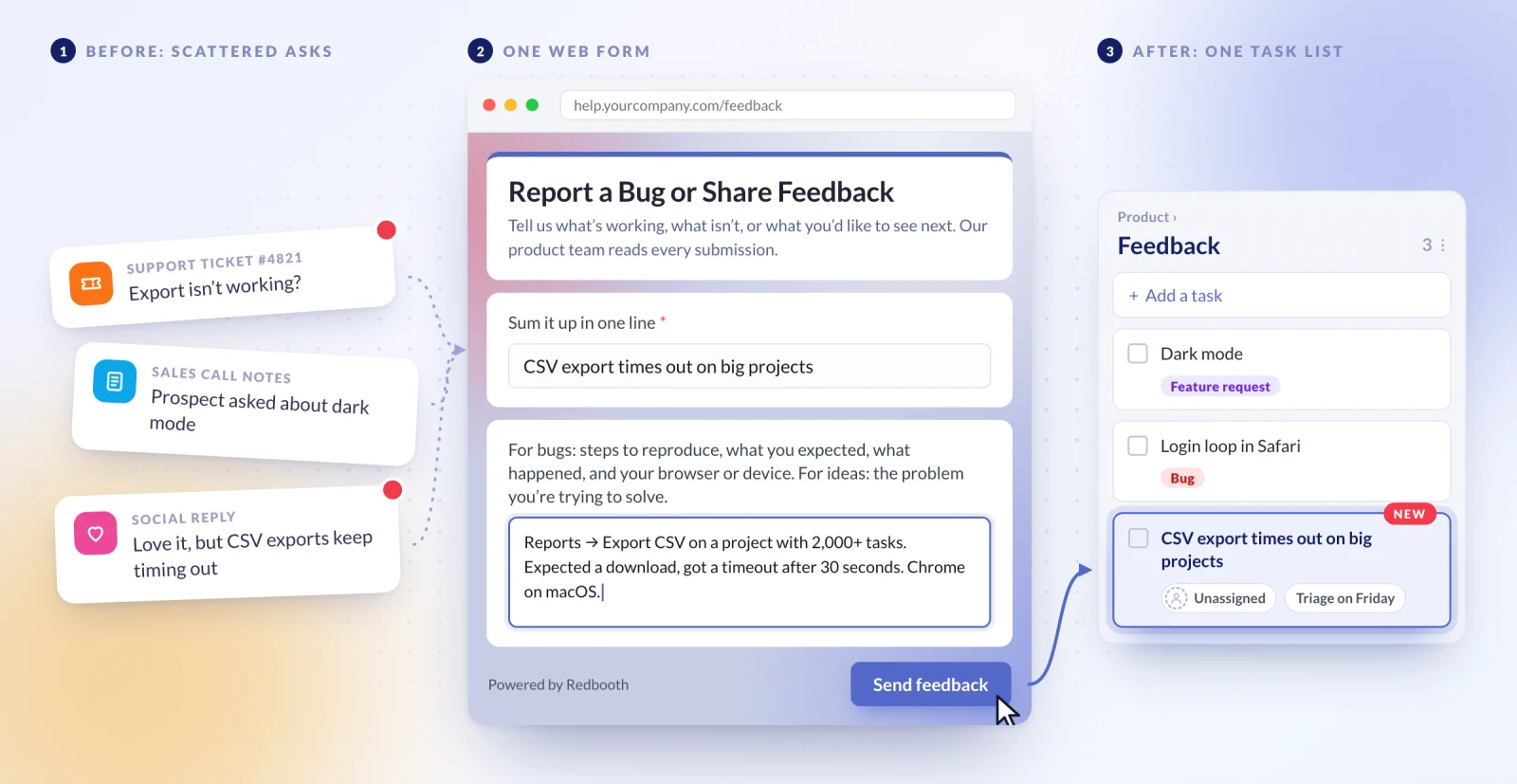
| Form title | Report a Bug or Share Feedback |
|---|---|
| Description | Tell us what's working, what isn't, or what you'd like to see next. Our product team reads every submission. |
| Title label | Sum it up in one line |
| Details label | For bugs: steps to reproduce, what you expected, what happened, and your browser or device. For ideas: the problem you're trying to solve. |
| Button label | Send feedback |
| Thank-you message | Thank you! Our product team reads every report. |
| Task list | Feedback |
| Assign to | Unassigned |
Once requests arrive: leave submissions unassigned and have a product manager triage the Feedback list once a week – tagging each task as a bug or feature request, linking duplicates in comments, and moving confirmed bugs into the engineering workspace. Customers don't always write tidy summaries, so Redbooth AI's Task Title Trim is handy for shortening a long title into something scannable.
Why it works: the Details label asks different questions for bugs and ideas, so both arrive with the right context – without needing two separate forms.
5. Event and Project Intake
Who it's for: event planners, PMOs, and marketing operations teams that run projects on request.
The problem: new projects start as a vague email – "we're thinking about a customer event in the spring" – and the planning team has to go back and forth several times to get the basics before any real work can begin.
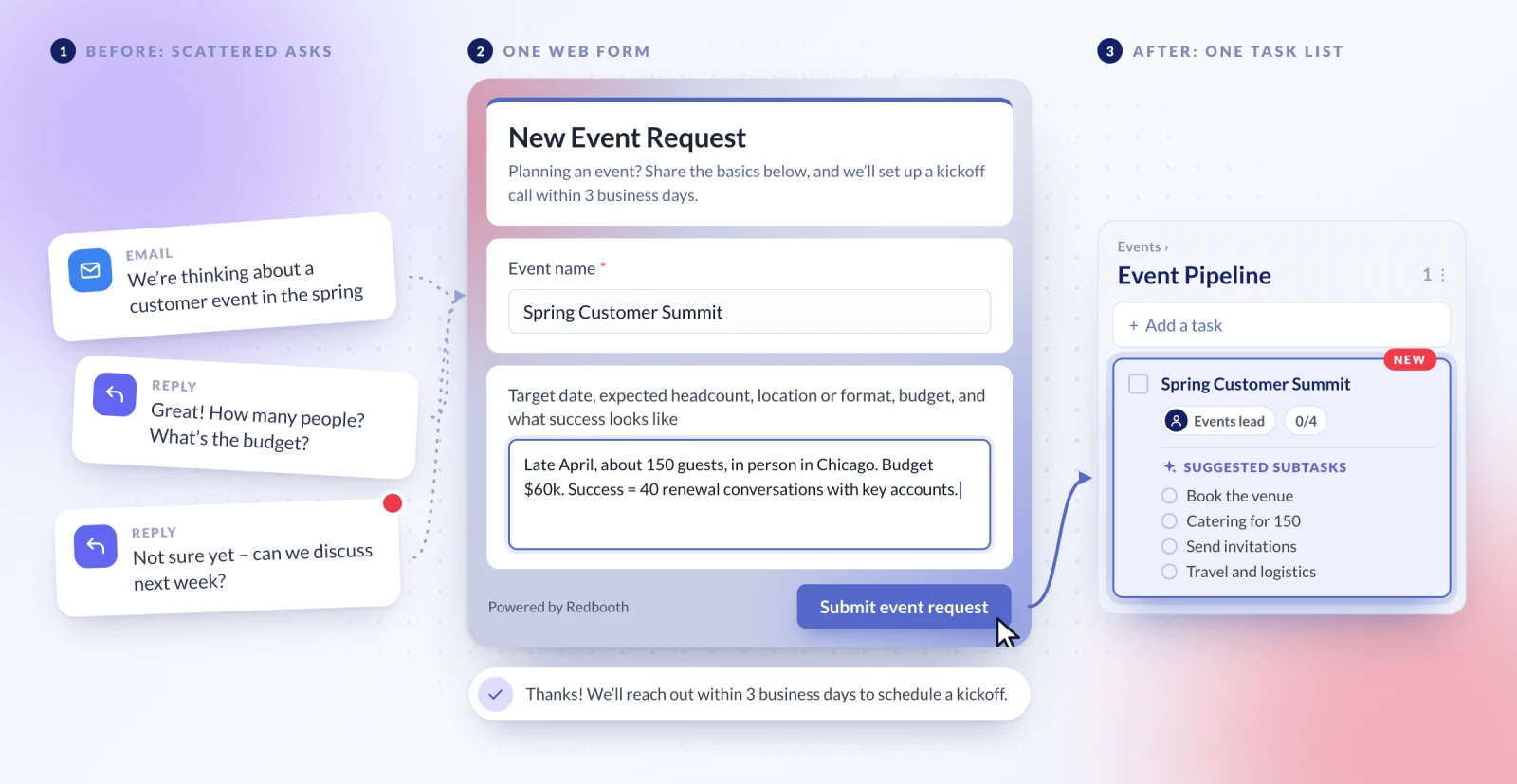
| Form title | New Event Request |
|---|---|
| Description | Planning an event? Share the basics below, and we'll set up a kickoff call within 3 business days. |
| Title label | Event name |
| Details label | Target date, expected headcount, location or format, budget, and what success looks like |
| Button label | Submit event request |
| Thank-you message | Thanks! We'll reach out within 3 business days to schedule a kickoff. |
| Task list | Event Pipeline |
| Assign to | Events lead |
Once requests arrive: the events lead reviews each request, and approved events get their own task list or workspace. The original request task becomes the planning brief: add subtasks for venue, catering, invitations, and logistics – or let Redbooth AI's Subtask Suggestion draft the checklist from the request details.
Why it works: the Details label asks for the five things every event plan needs, so the kickoff call starts with decisions instead of basic questions. See Redbooth for event planners for more on running events in Redbooth.
Build Your First Form
Pick the setup closest to how your team works, open your workspace's Settings → Web Forms, and copy it in. For a step-by-step walkthrough with screenshots, see Web Forms: Turn Every Request Into a Redbooth Task, or read Create Tasks From Web Forms in our Help Center.
If your team uses Web Forms in a way we haven't covered here, we'd love to hear about it – that feedback shapes what we build next.